Creating Inventory Transactions (Immediate Record)
The Immediate Record workflow is used to record real-time inventory movements. This method updates inventory instantly and supports the following transaction types:
Purchase
Initial Stock
Transfer
Consumption
Immediate Record is intended for same-day or direct movements that do not require order staging or a pick/fulfillment process.
Ways to Start a New Transaction
A new transaction can be created from multiple locations within the system. All methods open the same transaction window.
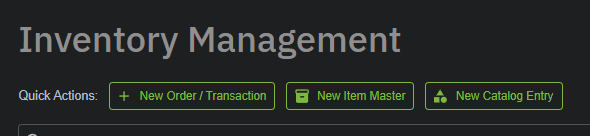
Option 1: Dashboard → Quick Actions
Open Inventory Management → Dashboard.
At the top of the page, select New Order / Transaction.
Option 2: From Any Item Page
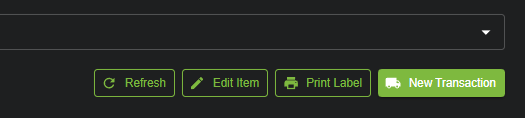
Transactions can be started directly from an item’s detail page.
Open any item (via Recent Activity, Catalog Search, or Inventory list).
In the top-right corner, click New Transaction.
[SCREENSHOT: Item page with New Transaction button]
Benefit:
The selected item is automatically pre-filled in the transaction form.
Transaction Cart
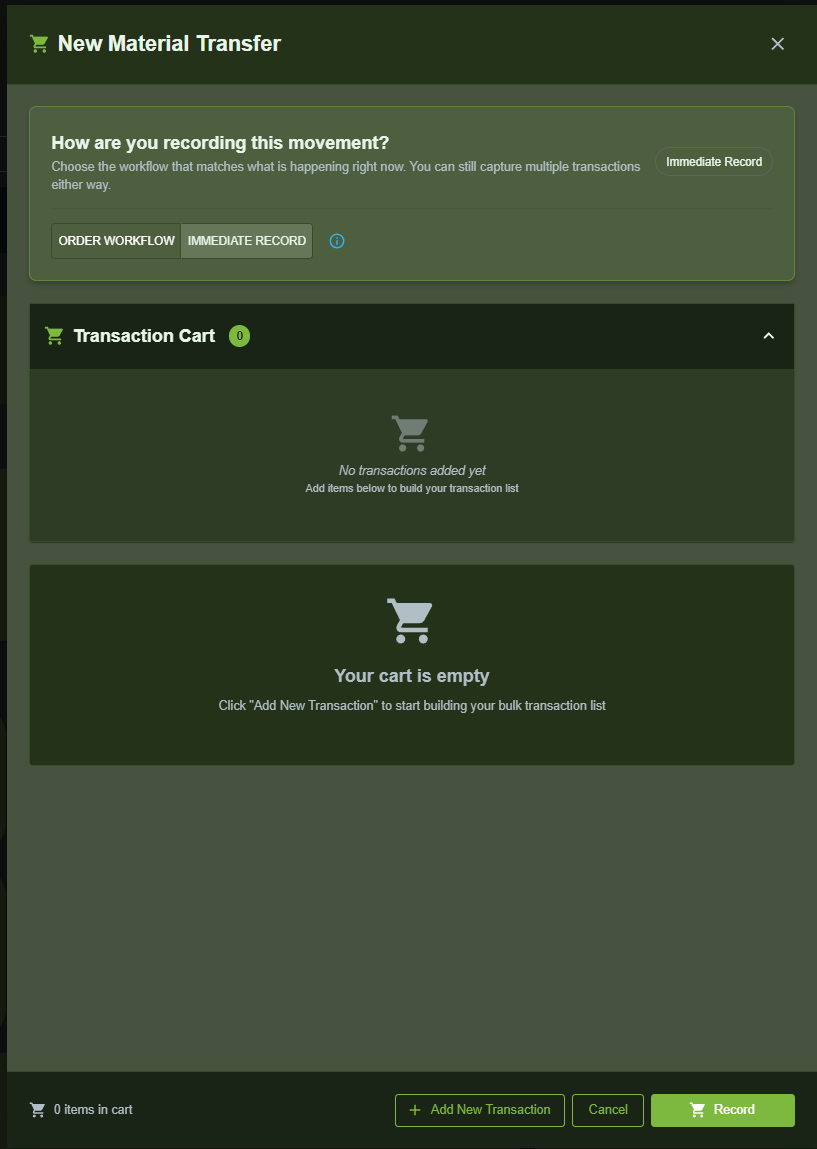
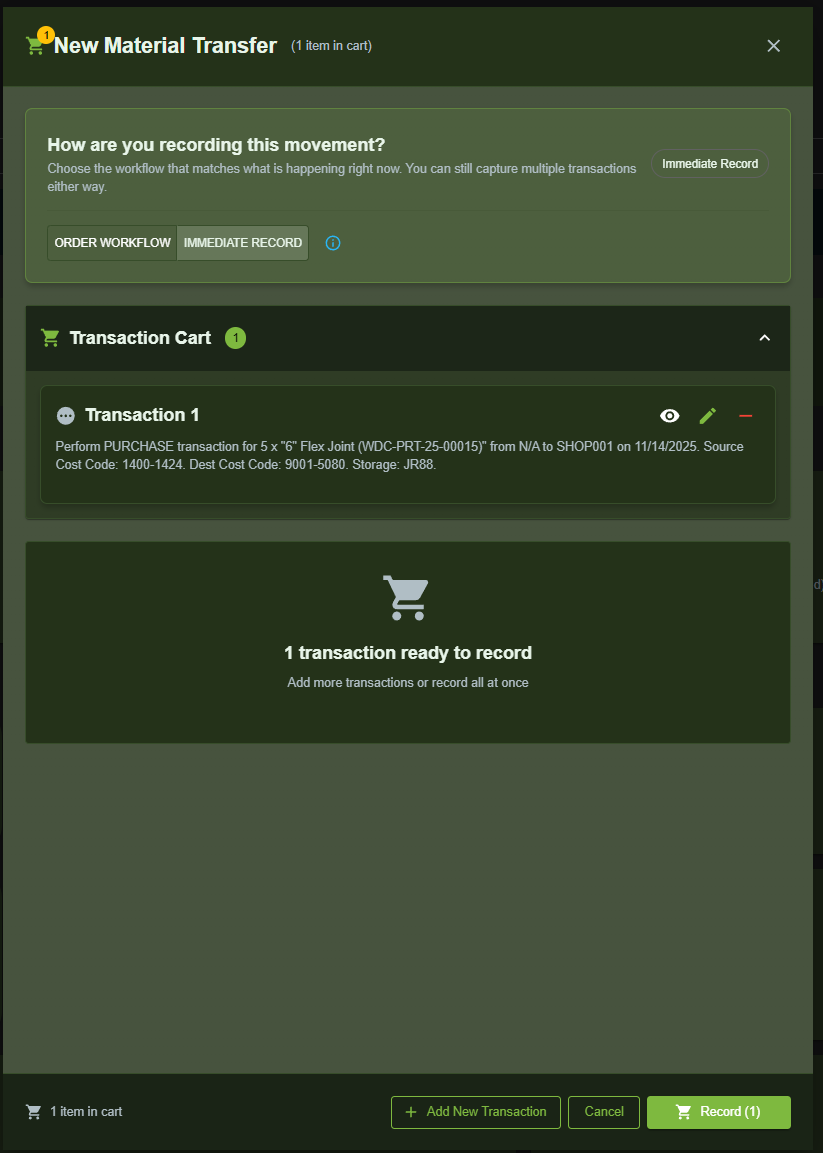
The transaction cart stores all pending transactions until you decide to record them.
Each added item appears in the cart with a summary.
A badge shows the current number of items.
You may view, edit, or delete entries at any time.
The cart persists even if closed or if you navigate elsewhere.
➕ Adding a Transaction
Click + Add New Transaction to begin entering a movement.

1. Select an Inventory Item
Use the dropdown to select the catalog item involved in the transaction.
If the item does not exist, click + Add New Catalog Item.
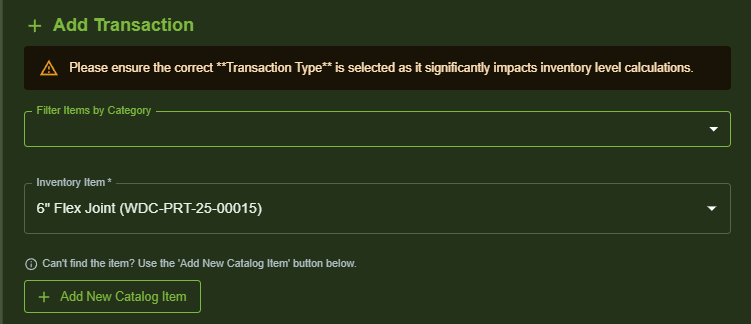
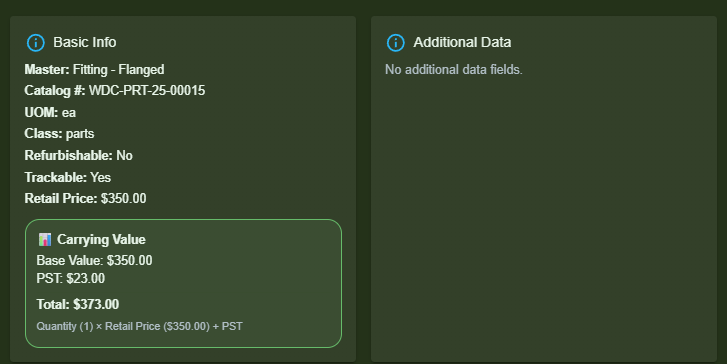
After selection, item details appear:
Basic Info
Additional Data (if applicable)
2. Enter Required Transaction Details
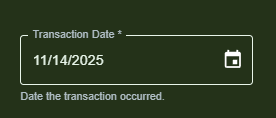
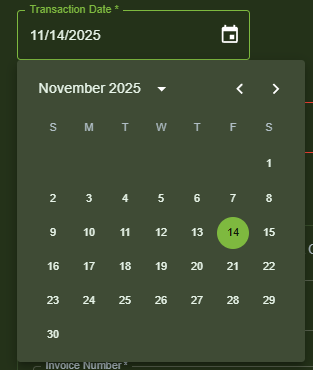
Transaction Date
Choose the date the movement occurred. (Defaults to current date.)
Transaction Type
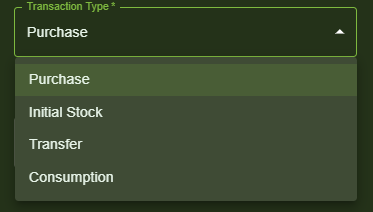
Available transaction types:
Purchase – Add new stock from a vendor
Initial Stock – Add existing items into the system for the first time
Transfer – Move items between locations or cost centers
Consumption – Reduce stock due to use or installation
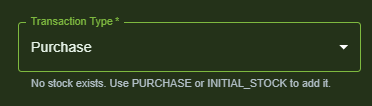
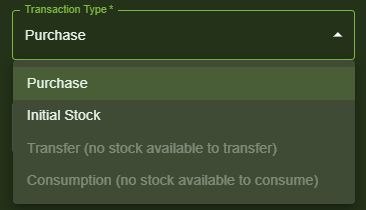
If stock already exists for the item, the system displays:
“Stock exists. Use TRANSFER or CONSUMPTION. Can also add more stock with PURCHASE/INITIAL_STOCK.”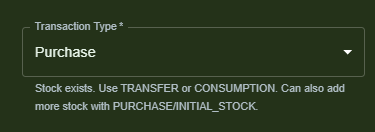
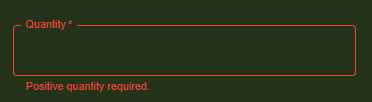
Quantity
Enter the number of units.
Refurbishable items must always have a quantity of 1.
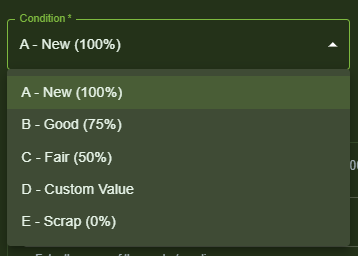
Condition
Select the appropriate condition: (Refurbishable)
A – New (100%)
B – Good (75%)
C – Fair (50%)
D – Custom Value
E – Scrap (0%)
3. Source and Destination
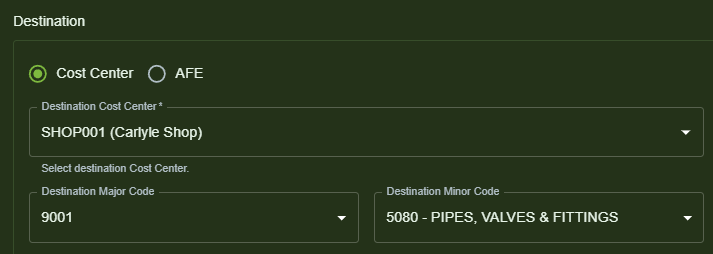
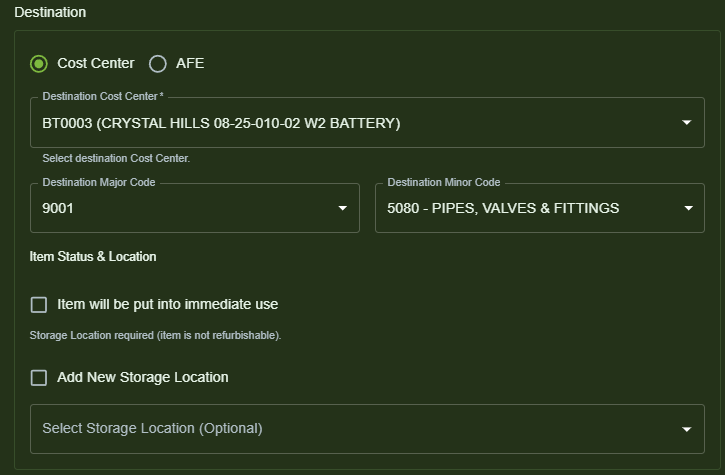
Depending on the transaction type, specify the Source, Destination, or both.
Each side supports:
Cost Center or AFE
Major Code
Minor Code
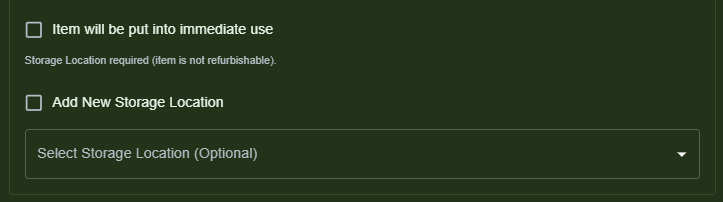
4. Storage Location
Choose where the item will be stored:
Select an existing location
Or enable Add New Storage Location to create one
Or enable Item will be put into immediate use
Transaction Preview
A full summary of the transaction appears at the bottom of the window.
This preview updates automatically as fields change.

➕ Add to Cart
Once all required fields are complete, click + Add to Cart.
Each cart entry includes:
View (eye icon)
Edit (pencil icon)
Delete (red icon)

Recording Transactions
When ready:
Review all items in the cart.
Click Record (X) to process all pending transactions.
The cart clears and the transactions are finalized.

Was this article helpful?
That’s Great!
Thank you for your feedback
Sorry! We couldn't be helpful
Thank you for your feedback
Feedback sent
We appreciate your effort and will try to fix the article