Overview
The Inventory Management system tracks stock using a lot-based FIFO (First In, First Out) model. Each inventory movement creates or interacts with one or more lots, preserving condition, cost, and carrying value over time.
This guide explains:
How inventory lots are structured and displayed
How costs and transaction history are tracked
How revaluation checks work during certain transactions
How to resolve transactions placed into Pending Valuation
Inventory Lots (Stock FIFO)
The Inventory Lots (Stock FIFO) section displays how on-hand inventory is grouped and valued.
Each lot represents inventory that shares the same:
Source (Cost Center / Facility)
Condition
Cost basis
Acquisition or valuation event
What You’ll See in the Lots Section
Location / Cost Center
Displays where the inventory currently resides.Condition
Indicates the condition rating (e.g., B – 75%).Cost Codes
Shows the associated major/minor cost codes tied to the lot.Quantity
Total quantity remaining in the lot.Total Value
The current carrying value of the lot.
At the lot summary level, you may also see:
Total Groups (Compatible Lots)
Total Lots
Total Quantity
Total Value
These totals help confirm how inventory is distributed and valued at a glance.
Item Costs
[SCREENSHOT: Item Costs panel]
The Item Costs section tracks direct cost records associated with the inventory item.
Each cost entry includes:
Transaction ID (MT #)
Date
Type (e.g., Purchase, Refurbishing)
Vendor
Invoice Number
Base Cost
PST
Total Cost
This section reflects financial inputs that contribute to an item’s overall carrying value but does not represent physical inventory movements on its own.
Transaction History
[SCREENSHOT: Transaction History table]
The Transaction History table provides a complete audit trail of inventory movements.
Columns Explained
TX ID – Unique transaction identifier
Status – Current transaction state (e.g., Pending Review, Pending Valuation)
Type – Transaction type (Purchase, Transfer, Consumption, etc.)
Qty – Quantity moved
Source – Origin location or cost center
Destination – Receiving location or cost center
Condition – Condition at time of transaction
In Use – Indicates if the item was placed into immediate use
Costs – Associated transaction costs (if applicable)
Carrying Value – Resulting value after valuation logic
Actions – View or edit transaction details
This table is the primary place to:
Review historical activity
Identify transactions requiring follow-up
Access transactions pending valuation or review
Revaluation Check
During certain transactions involving refurbishable inventory, the system may prompt a Revaluation Check.
This occurs when inventory with an existing carrying value is being moved and the system needs confirmation that the valuation is still accurate.
Current Values Displayed
The Revaluation Check displays:
Current Condition
Current Retail Price
Existing Carrying Value
You are asked whether the item should be revalued based on its current state.
Revaluation Options
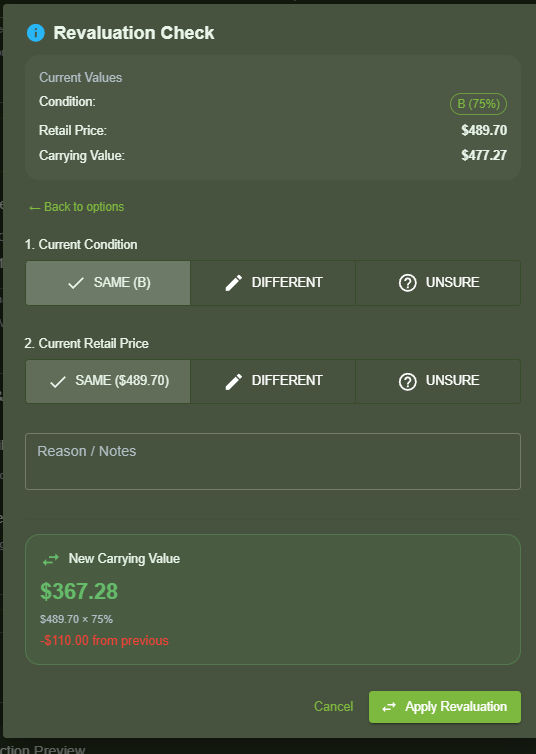
1. SAME
Select SAME if:
The condition has not changed
The retail price is still accurate
The transaction will proceed using the existing carrying value.
2. DIFFERENT
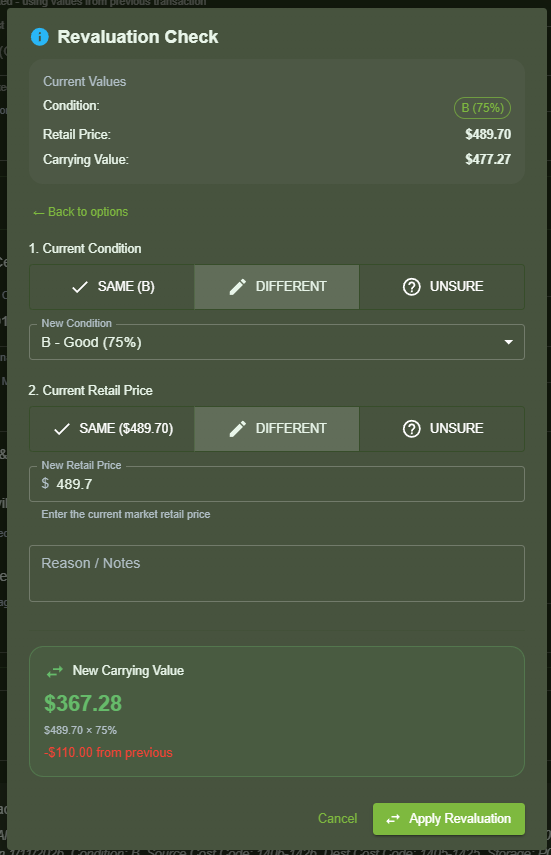
Select DIFFERENT if:
The condition has changed
orThe retail price needs adjustment
You will be prompted to:
Select a new condition
Enter an updated retail price (if applicable)
Provide optional notes
The system calculates a new carrying value based on:
Retail price × condition percentage
3. UNSURE (Pending Valuation)
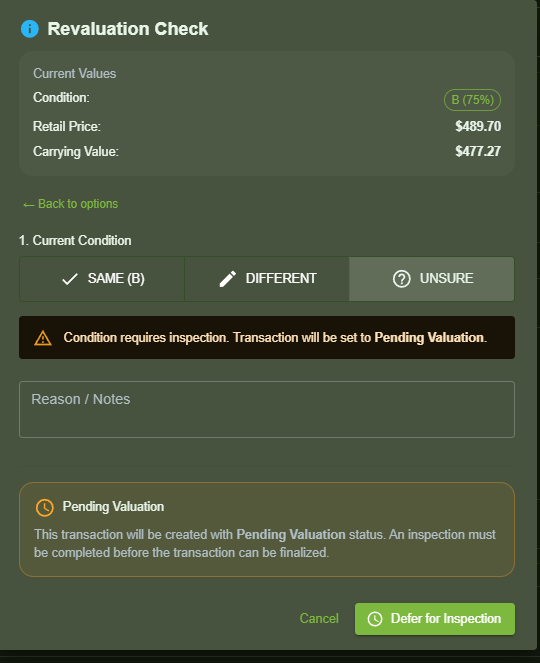
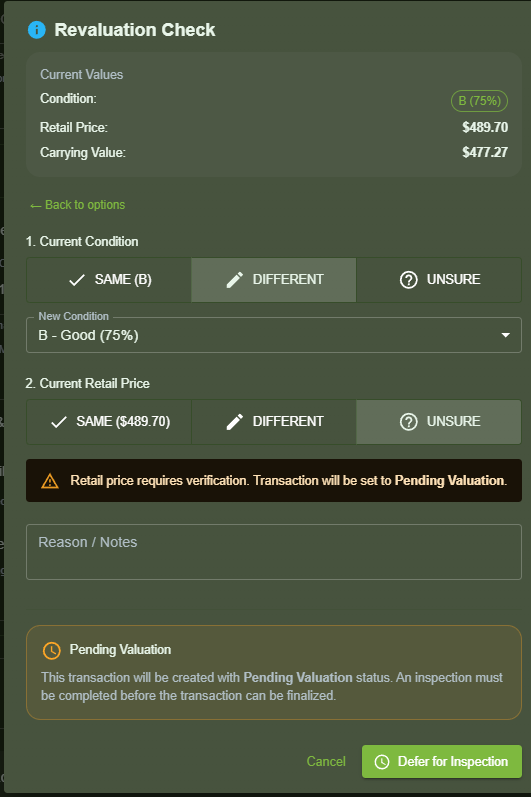
Select UNSURE if:
The item requires inspection
Condition or pricing cannot be confirmed immediately
When selected:
The transaction is created with Pending Valuation status
Inventory movement is paused until valuation is completed
A warning banner confirms the transaction cannot be finalized yet.
Pending Valuation Transactions
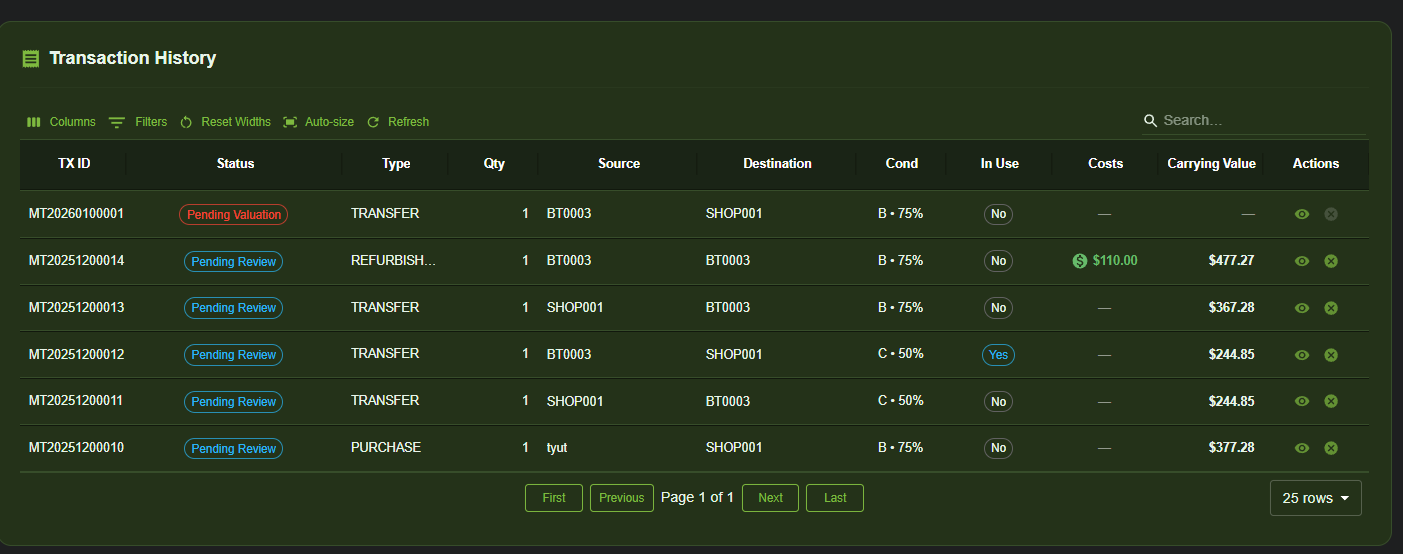
Transactions marked Pending Valuation appear clearly in the Transaction History.
These transactions require review before they can be finalized.
Completing a Pending Valuation
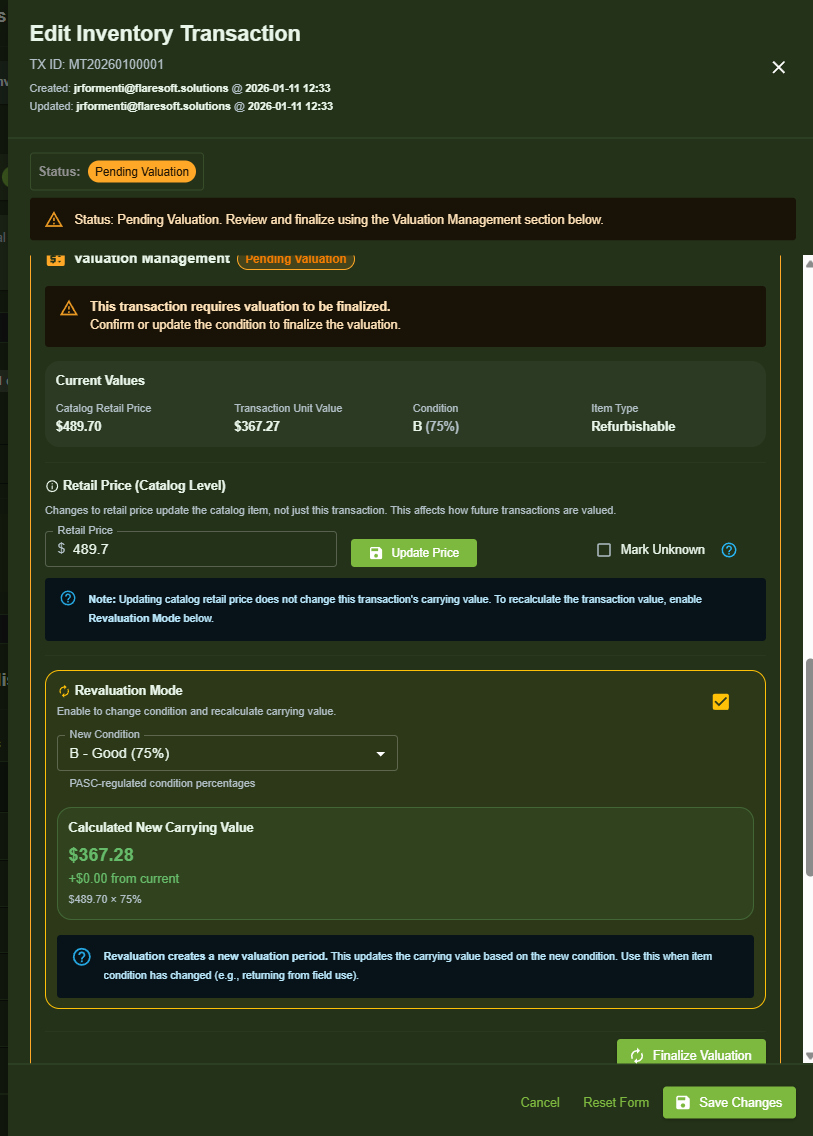
To finalize a Pending Valuation:
Open the transaction using the View (eye) icon
Scroll to the Valuation Management section
Review current catalog retail price and condition
Enable Revaluation Mode
Select the correct condition
Confirm or update retail price if required
Review the recalculated carrying value
Click Finalize Valuation and Save Changes
Once completed:
The transaction status updates
Inventory lots and carrying values are finalized
The transaction becomes part of normal inventory history
Key Notes and Best Practices
Revaluation checks apply to refurbishable inventory
Not all transaction types will trigger revaluation
Pending Valuation ensures financial accuracy before inventory is finalized
Transaction History should be reviewed regularly to catch pending items
Was this article helpful?
That’s Great!
Thank you for your feedback
Sorry! We couldn't be helpful
Thank you for your feedback
Feedback sent
We appreciate your effort and will try to fix the article